Understanding Different User Roles on Your Website
In today’s digital environment, managing user access isn’t just about security — it’s about creating a structured system that supports collaboration and smooth functionality. When you assign the right roles to the right users, you ensure that everyone has the tools and access they need to make your website perform efficiently. Understanding these user types and their permissions can also help prevent security risks and streamline workflows.
Exploring Key User Roles That Shape Your Website
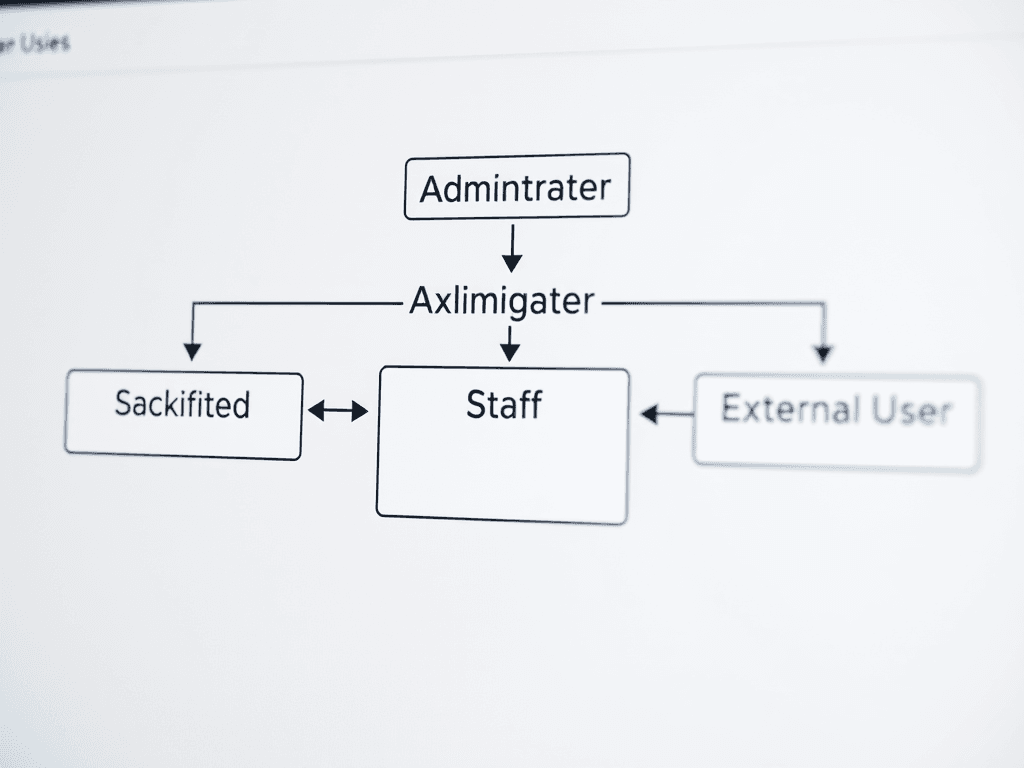
When developing a modern website, identifying different user roles is essential to maintain organization and efficiency. The most common roles include external users, staff users, administrators, and developers. Each role interacts with the site in unique ways — for instance, external users (visitors) browse and engage with content, while staff users update posts, manage forms, and handle customer inquiries. Understanding these categories helps businesses provide role-appropriate tools and access levels.
Administrators hold the highest level of access and control over the website. They manage system configurations, add or remove users, approve content, and oversee security policies. In contrast, developers or technical staff handle website maintenance, updates, and integration with new tools or APIs such as Archer IT Solutions’ Web Design Services. This division of labor ensures that operations run smoothly and securely while maintaining accountability across all levels of access.
Example: Consider a medium-sized eCommerce company that uses distinct user roles: customers (external users), content creators (staff users), web admins, and back-end developers. Each user performs a specific function that complements the other, resulting in improved usability, faster support, and reduced risks of unauthorized access. If you need support managing your user tiers effectively, Archer IT Solutions’ Managed IT Services can help design scalable access structures.
Visual Element Suggestion:
Insert a labeled diagram showing different website user roles such as Administrator → Staff → External User, with arrows indicating hierarchy and permissions.
How Role Permissions Influence Site Functionality
Role permissions act as the backbone of access control, determining what users can view, edit, or manage. By assigning the correct permissions, website owners can ensure smoother collaboration without jeopardizing data security. For example, giving an external user administrative privileges can expose sensitive files or system settings. Segregating permissions helps maintain operational integrity and protects business data from internal and external risks.
Pros and Cons:
- Pros: Enhances security, promotes accountability, simplifies training, and supports effective teamwork.
- Cons: Misconfigurations may cause access errors, restrict legitimate use, or require frequent updates when expanding teams.
Troubleshooting role-based access often involves reviewing user permission logs or checking authentication credentials. For instance, if a staff member loses publishing access, verify their user group assignment. Archer IT Solutions’ Support Portal offers assistance for these technical issues. Additionally, external resources like Smashing Magazine’s guide on role-based systems provide helpful best practices for role implementation and testing.
Example: A blog site managed by multiple authors can implement Editor, Contributor, and Subscriber roles to control publishing rights. Editors proof content; Contributors submit drafts; Subscribers engage as readers. With scalable permissions, businesses maintain quality control while fostering collaboration.
Visual Element Suggestion:
Insert a table comparing role permissions (View, Edit, Delete, Publish) for Admins, Editors, and Users for quick visual reference.
Assigning and managing user roles isn’t just about security — it’s about empowering each person on your team to fulfill their responsibilities efficiently. From admins who maintain full control to external visitors who engage with your content, each role adds to your website’s functionality and user experience. Take the time to design a clear structure, review permissions regularly, and use professional support when needed. For expert help, contact Archer IT Solutions at info@archer-its.com or explore their Web Hosting Services to create a secure, well-managed digital environment.
Call to Action:
Ensure your website runs efficiently with clearly defined user roles. Visit Archer IT Solutions or get direct support at support@archer-its.com within 24 hours.
Supporting External Resources:
- https://blog.hubspot.com/website/user-roles – Article explaining website role management strategies.
- https://www.smashingmagazine.com/ – Insightful design and development best practices to align permissions with usability.
[submit “Submit”]
1
[_site_title] “[your-subject]”
[_site_title]
[_site_admin_email]
From: [your-name] [your-email]
Subject: [your-subject]
Message Body:
[your-message]
—
This is a notification that a contact form was submitted on your website ([_site_title] [_site_url]).
Reply-To: [your-email]
1
1
[_site_title] “[your-subject]”
[_site_title]
[your-email]
Message Body:
[your-message]
—
This email is a receipt for your contact form submission on our website ([_site_title] [_site_url]) in which your email address was used. If that was not you, please ignore this message.
Reply-To: [_site_admin_email]
1
1
Thank you for your message. It has been sent.
There was an error trying to send your message. Please try again later.
One or more fields have an error. Please check and try again.
There was an error trying to send your message. Please try again later.
You must accept the terms and conditions before sending your message.
Please fill out this field.
This field has a too long input.
This field has a too short input.
There was an unknown error uploading the file.
You are not allowed to upload files of this type.
The uploaded file is too large.
There was an error uploading the file.
Please enter an email address.
Please enter a URL.
Please enter a telephone number.
Please enter a date in YYYY-MM-DD format.
This field has a too early date.
This field has a too late date.
Please enter a number.
This field has a too small number.
This field has a too large number.
The answer to the quiz is incorrect.

No responses yet