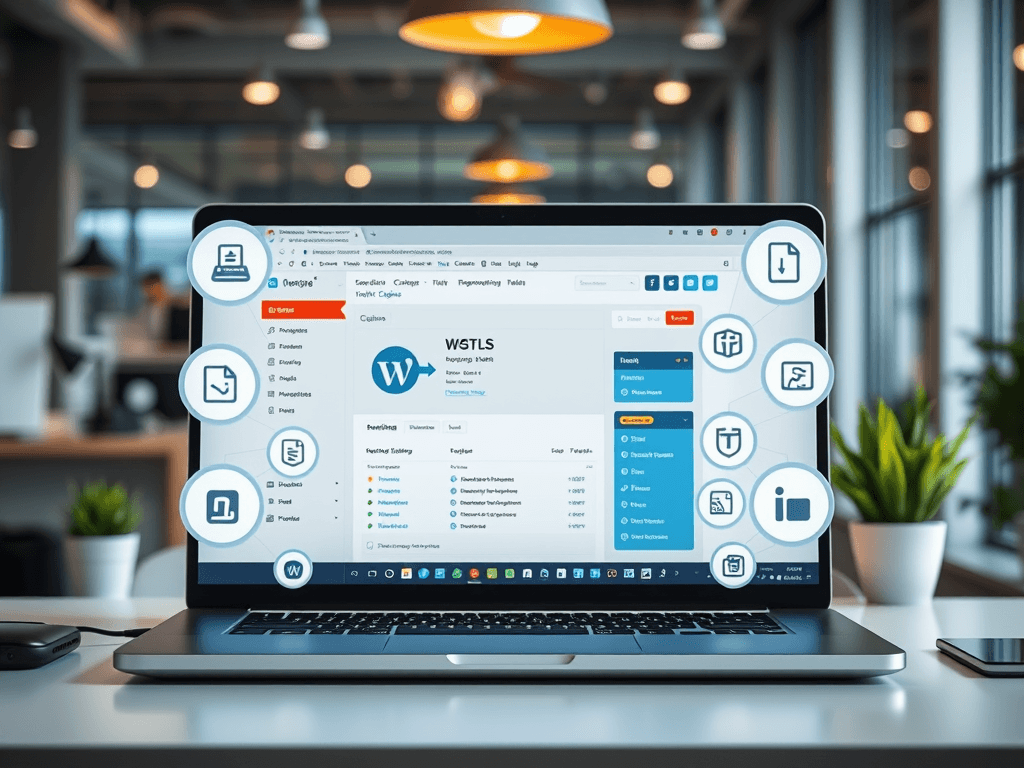
Using Multiple Plugins Safely in WordPress

Managing multiple plugins in WordPress can be powerful yet tricky. While having more than one plugin is totally possible, using them safely together requires care, attention, and a good understanding of how they interact. This article explores strategies to keep your WordPress site stable and performing well while enjoying the flexibility that plugins offer.
Ensuring Safe Plugin Interaction in WordPress
Running two or more plugins simultaneously on WordPress is completely possible and often necessary for extending site functionality. Whether it’s combining SEO tools with caching or adding form builders with security plugins, WordPress supports multiple integrations seamlessly. However, safety and site health depend on choosing compatible, well-maintained plugins and keeping them updated regularly. According to a W3Techs survey, over 43% of all websites use WordPress, with many depending on multiple plugins to perform essential tasks.
Before installing multiple plugins, always check their compatibility and version history. It’s advisable to read user reviews, confirm update frequency, and ensure the plugins are supported by the latest WordPress version. Test new plugins on a staging environment before pushing them to your live website—this preventive step helps you identify conflicts early.
Pros of using multiple plugins:
- Adds flexibility and extra functionality.
- Reduces the need for custom coding.
- Enhances user experience.
Cons:
- Potential slower site performance.
- Higher maintenance effort.
- Greater risk of plugin conflict.
Summary: Using multiple plugins is not just possible, it’s essential for advanced site features. Yet, safety depends heavily on compatibility tests and consistent maintenance routines.
Troubleshooting Common Plugin Conflicts Easily
Even well-tested plugins can occasionally conflict, resulting in broken layouts, slow load times, or unexpected behavior. The key is to stay systematic when diagnosing these issues. Start by disabling all plugins, then reactivate them one by one to identify the source of the conflict. Tools like the Health Check Plugin from WordPress can simplify this process by running debug tests without affecting visitors.
If you find a conflict, check the plugin developers’ documentation or forums. You can often find compatibility fixes or patches. Keeping backups through tools like UpdraftPlus ensures you can restore your site if something goes wrong. For business-critical websites, professional assistance—such as Archer IT Solutions Managed IT Support—can help diagnose deeper compatibility issues quickly and safely.
Quick Troubleshooting Tips:
- Clear your website cache after every plugin update.
- Keep a record of active plugin versions.
- Use plugins from verified and reputable developers only.
Summary: Conflict resolution becomes easier with a logical, step-by-step approach. Using diagnostic tools, maintaining backups, and working with professional support assures ongoing plugin harmony.
Whether you’re a WordPress beginner or an experienced developer, safely managing multiple plugins is about balance—leveraging functionality without compromising stability. Take the time to audit, test, and update regularly. For complex setups or larger business websites, you can always reach out to Archer IT Solutions for professional web hosting, onsite or remote IT support, and managed services.
Key Contacts for Archer IT Solutions:
- Technical Support: support@archer-its.com
- General Info: info@archer-its.com
- Sales: sales@archer-its.com
- Accounting: accounting@archer-its.com
- Support Portal: https://archer-its.com/ticket
Reflect on your own website’s plugin needs, evaluate what truly enhances performance, and take action to streamline and secure your WordPress ecosystem today.
[submit “Submit”]
1
[_site_title] “[your-subject]”
[_site_title]
[_site_admin_email]
From: [your-name] [your-email]
Subject: [your-subject]
Message Body:
[your-message]
—
This is a notification that a contact form was submitted on your website ([_site_title] [_site_url]).
Reply-To: [your-email]
1
1
[_site_title] “[your-subject]”
[_site_title]
[your-email]
Message Body:
[your-message]
—
This email is a receipt for your contact form submission on our website ([_site_title] [_site_url]) in which your email address was used. If that was not you, please ignore this message.
Reply-To: [_site_admin_email]
1
1
Thank you for your message. It has been sent.
There was an error trying to send your message. Please try again later.
One or more fields have an error. Please check and try again.
There was an error trying to send your message. Please try again later.
You must accept the terms and conditions before sending your message.
Please fill out this field.
This field has a too long input.
This field has a too short input.
There was an unknown error uploading the file.
You are not allowed to upload files of this type.
The uploaded file is too large.
There was an error uploading the file.
Please enter an email address.
Please enter a URL.
Please enter a telephone number.
Please enter a date in YYYY-MM-DD format.
This field has a too early date.
This field has a too late date.
Please enter a number.
This field has a too small number.
This field has a too large number.
The answer to the quiz is incorrect.
Discover more from Archer IT Solutons
Subscribe to get the latest posts sent to your email.
Discover more from Archer IT Solutons
Subscribe to get the latest posts sent to your email.

No responses yet